Playground Parent App
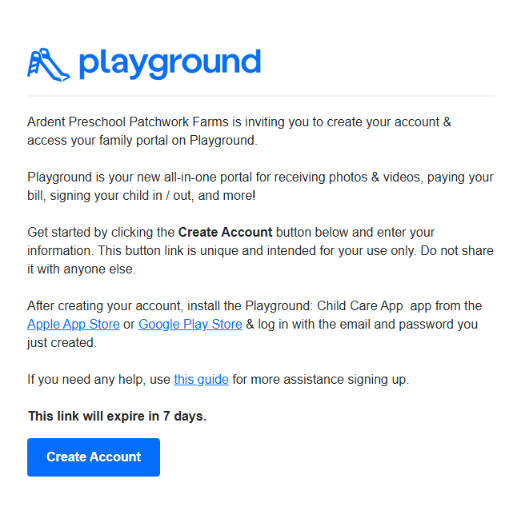
On the day your student enrolls at Ardent Preschool, you will receive an email like the one pictured here. This invitation will give you access to download the App and create your account. Be sure to create your account using the same email address which received the invitation. If you have trouble creating your account, or if you would like more details – click the “how-to” resource button below.
PLAYGROUND APP FAQ's
How do I sign up for the Playground App?
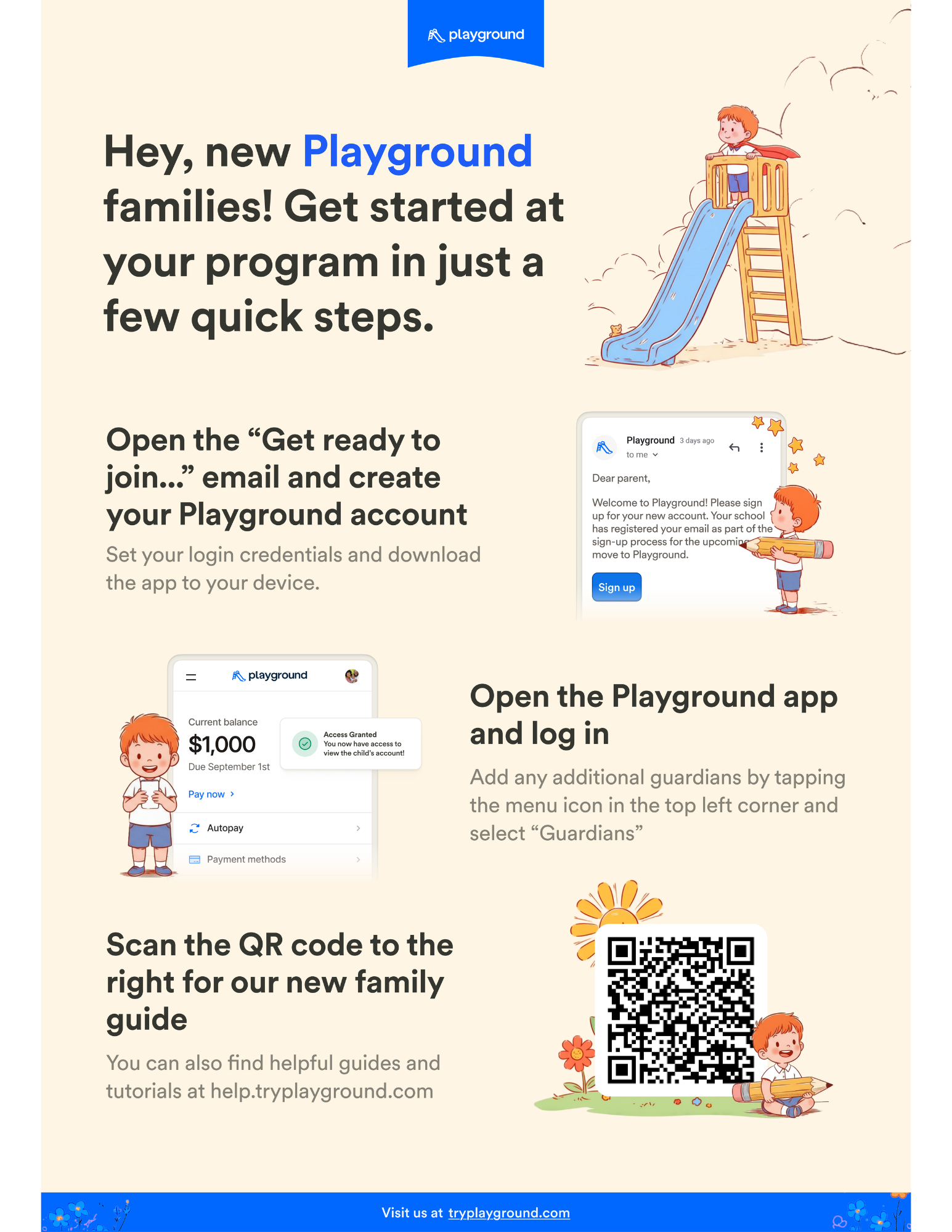
- Parents will receive an email inviting you to download the Playground App and sign up.
- Click the blue Create Account button in the sign-up email.
- Enter your name, phone number, and relationship to the student. Create a password, then click Create Account. Note: the email field cannot be edited on this screen. However, you can change your email address after you’ve signed up.
- Your account has now been created. Log into Playground on web by navigating to app.tryplayground.com or download the mobile app.
- Once logged in you will be prompted to add a payment method.
How do I add a billing method in Playground?
Mobile
- From the Home screen tap the ☰ Menu icon in the top left corner.
- Tap Billing to reach the Billing Portal screen.
- Tap Payment methods.
- To add a new method, tap the blue + sign or the Add payment method button.
- Tap Bank Account (ACH).
- To instantly connect and verify your bank account, click “Agree”.
- Select your bank and login to your online bank account.
- If your bank isn’t listed, link your bank manually by following the steps below
Link a Bank Account (ACH) manually
If your bank isn’t listed, you can link your bank account manually by entering routing and account numbers (only checking accounts are supported). This process involves verifying your account with two small deposits (usually less than $1 each) that will be deposited into your checking account.
‘Unverified’ status indicates that the bank account has not yet completed the validation process for payment processing. During this time, Playground sends two micro-deposits to the account, which can take up to 7 business days to appear. Verification involves entering the specific amounts from these deposits into the system to confirm the account’s authenticity.
These deposits will stay in your account for 3-4 days before being withdrawn. During this period, log in to Playground and confirm the exact amount of each deposit to verify your account. The micro-deposits will include a 6-digit verification code, often in the format ‘SMXXXX-PLAYGROUND,’ visible in the transaction descriptor. Enter this code into the Playground app under the verification section to complete the process. This ensures the account is properly linked for payment processing.
Manual bank verification can only be completed in the Playground mobile app. You can add the bank account on the web, but the verification step must be finished in the app.
Add a credit or debit card
Ardent Preschool families can add credit/debit cards to a student’s billing profile, this is optional and is NOT REQUIRED.
- From the Home screen tap the ☰ Menu icon in the top left corner.
- Tap Billing to reach the Billing Portal screen.
- Tap Payment methods.
- To add a new method, tap the blue + sign or tap on Add payment method.
- Enter the required information in the appropriate fields
- Tap Submit
- You’ll be returned to the Payment Methods screen, with a notification confirming your new payment method has been added.
Payment Processing Fee Disclosure
For your convenience, Ardent Preschool offers multiple payment methods. Please note that payment processing fees are charged by our third-party payment processor and, when applicable, are collected at the time of payment and passed through to the processor. Ardent Preschool does not retain these fees.
- ACH/Bank Transfer: A $1.00 processing fee applies to each ACH transaction.
- Credit/Debit Cards: A processing fee of 3% + $0.30 applies to each card transaction.
These processing fees are the responsibility of the payer and are non-refundable, including for reversed, declined, disputed, or refunded transactions, to the extent the processor does not return the fee. By submitting payment, you authorize Ardent Preschool to collect and remit the applicable processing fee based on your selected payment method.
How do I check my child in and out?
To check in you may: Open camera and scan QR code at the front desk or kiosk OR Enter in PIN at kiosk.
- If scanning QR Code: Open Playground App
- Click the scan icon at the top right and scan the QR code at the front desk or kiosk.
- Click the Blue box at the bottom of the screen that says, Sign for students”.
- Click the Blue box at the bottom of the screen that says, Sign for students”.
- Your child has been signed in.
- To sign out, follow the same steps as above.
Where do I find my child's PIN number in Playground?
- Open Playground app and tap the ☰
- Select Settings from the menu.
- Select View PIN code.
- The code will appear in blue and may be entered at check-in/checkout kiosk to sign child in and out.
How do I add a guardian in Playground?
- Open Playground app and tap the ☰
- Select Guardians
- Choose Add Guardian at the bottom of the screen.
- Fill out all fields listed.